Core Technology Asset
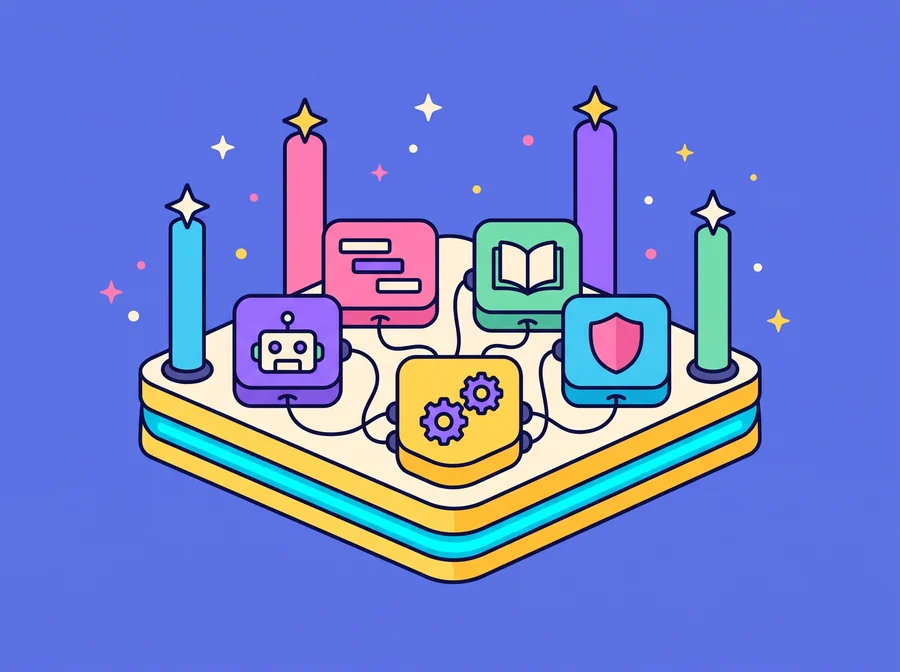
ThinkOS is not a sixth line. It is the core technology asset all five share.
- Agent Orchestration
- Project Management
- Knowledge
- Automation
- Governance
ThinkOS is a desktop-style company workspace that opens in a web browser. We built it ourselves and use it every day: to direct AI agents that write and test code, to run client projects from the first requirement to delivery, to keep each project's knowledge, and to look after every service we run. Because all five business lines work on the same platform, what one line builds the others can pick up straight away.
Five modules
-
Agent Orchestration
Directs several AI agents, such as Claude and Codex, working in parallel, with shared project memory and goals that carry over between sessions.
-
Project Management
Runs client projects end to end: Gantt plans, phase-by-phase acceptance, task boards, requirements, issues and change requests, with a portal where clients follow progress and receive deliveries.
-
Knowledge
Each project's knowledge, notes, documents and the data gathered in the Data Hub, in one place for people and agents alike.
-
Automation
Work that runs on its own schedule, such as the daily brief, and a service manager that starts, stops and restarts apps and puts a domain on HTTPS from one screen.
-
Governance
Access rights per account and per project, a record of which files each agent changed, and a person checking and approving before work reaches a client.
Underneath all five lines
ThinkOS is not a sixth business line. It is the floor the five stand on, which is why what one line builds the others can use straight away.
FrontierBuild the Future.
Agents on ThinkOS write, fix and test the code of every product we build.
AcademyTransform How People Work.
What the Agentic AI classes teach is how our own team works on ThinkOS every day.
TransformationTransform the Organization.
Agents deployed into client organisations run on ThinkOS, within the access and rules set for them.
InfrastructureOwn Your AI Stack.
This line installs ThinkOS for clients, on their own servers or in the cloud, connected to a Local LLM.
LiveAI in the Real World.
Mulunara's app and back office are built and run with the same tools on ThinkOS.
The screens the team works in
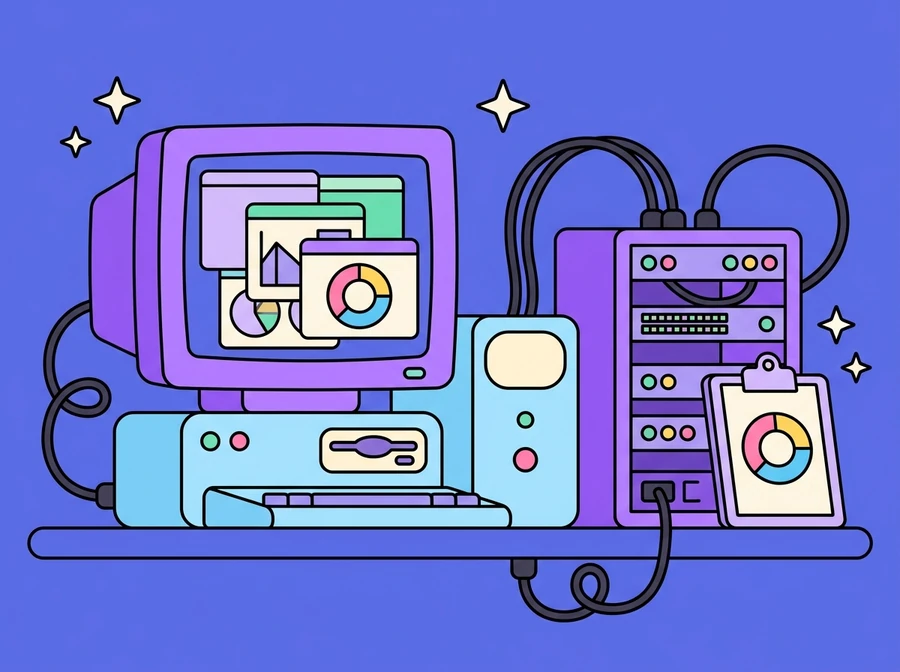
One desktop with every app the team needs
The main ThinkOS screen is a desktop with a strip of icons down the left, so every tool opens from one place, without switching between multiple windows and programmes.
- Remote Desktop
- Terminal
- Files
- Settings
- Servers
- Client Project
- Notes
Servers: see every service that is running
The Servers app lists the services running on the machine, each with its entry file, port and PID, and they can be started or stopped straight from that list. A Refresh button pulls the latest status, and an Add Server button registers a new service. Identifying services by port and PID makes it clear exactly which one is being acted on, even when several share the same entry filename, such as run.py or main.py.
- A list of running services with entry file, port and PID
- Start and stop buttons for each service
- A Refresh button for the latest status
- An Add Server button to add a new service
Client Project: from the brief through to billing
The Client Project app covers the whole delivery line: client and project details, work divided into phases, requirements captured and then broken down into tasks, followed by tracking of issues and bugs, change requests, meeting notes, attachments, the timeline, payments and reports. It is all in one app, so nothing has to be hunted down in several places when a client asks.
- Dashboard, Clients, Projects, Phases
- Requirements, Tasks, Issues / Bugs, Change Requests
- Meeting Notes, Notes, Files, Timeline
- Payments, Reports, Settings
A dashboard that shows which work is about to slip
The Dashboard sums up delivery on a single screen: how many clients are still active, work that is overdue, issues still open and how many of those are critical, along with total budget and outstanding balance across projects. Below that are panels breaking projects down by status, issues by severity from Low to Critical, deadlines falling within the next 14 days, and the team's most recent activity.
Want ThinkOS in your organisation?
ThinkVerse Infrastructure installs ThinkOS on your servers or in the cloud, and ThinkVerse Transformation puts the agents and the rules to work on it.
ThinkVerse Infrastructure ThinkVerse Transformation Contact us